Website Traffic in Google Sheets
Website traffic in Google Sheets lets you sort, filter and chart any domain list. You stay in the tool your team already uses.
SameAPI gives you visits, rank, sources and countries ready to drop into a sheet.
Start with a CSV import today. You can automate it later if you want.
No credit card required.
Get Traffic Columns for Every Domain in Your Sheet
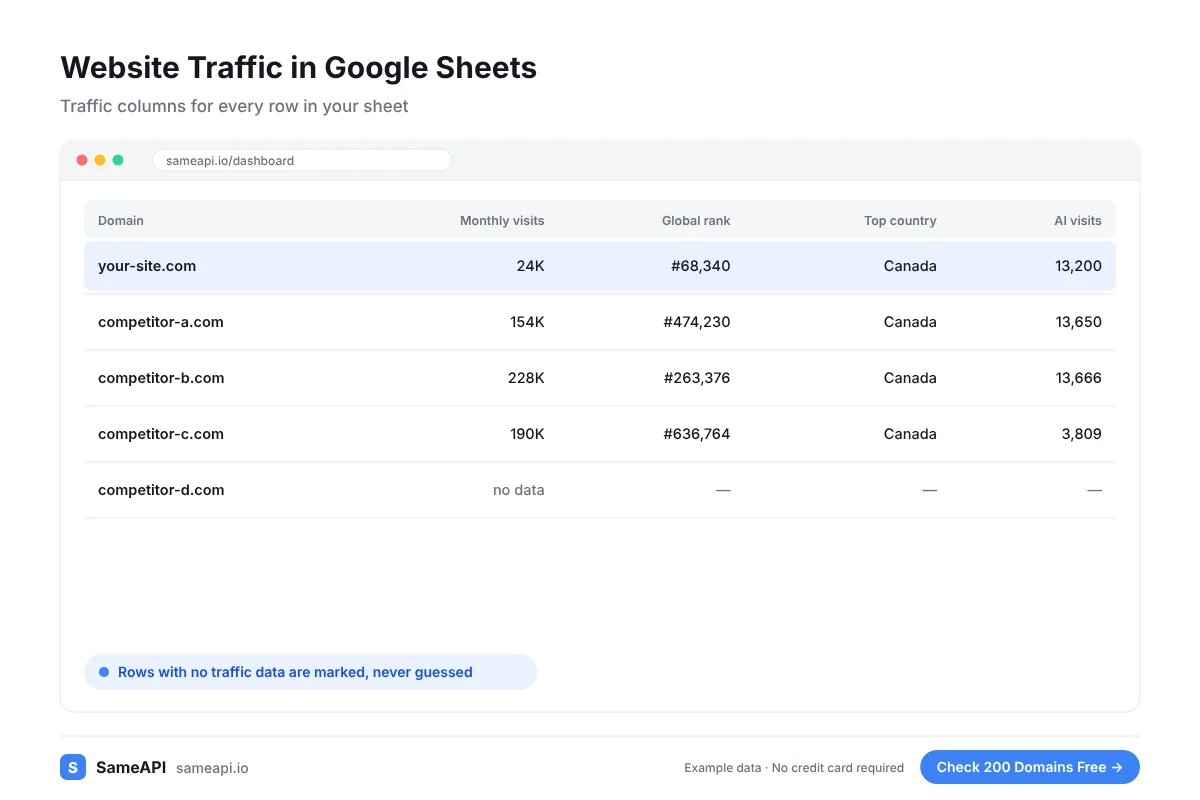
Paste the domains from your sheet into SameAPI. The export comes back with one row per domain and the same columns for all.
- Estimated monthly visits for the last three months
- Global, country and category rank
- Search, direct, social, referral, paid and email share
- Top countries by share of visits
- Total AI visits and the assistants sending them
- A clear "no data" result for sites without traffic
Import the file and use the columns in filters, pivot tables and charts.
Stop Copying Numbers One Domain at a Time
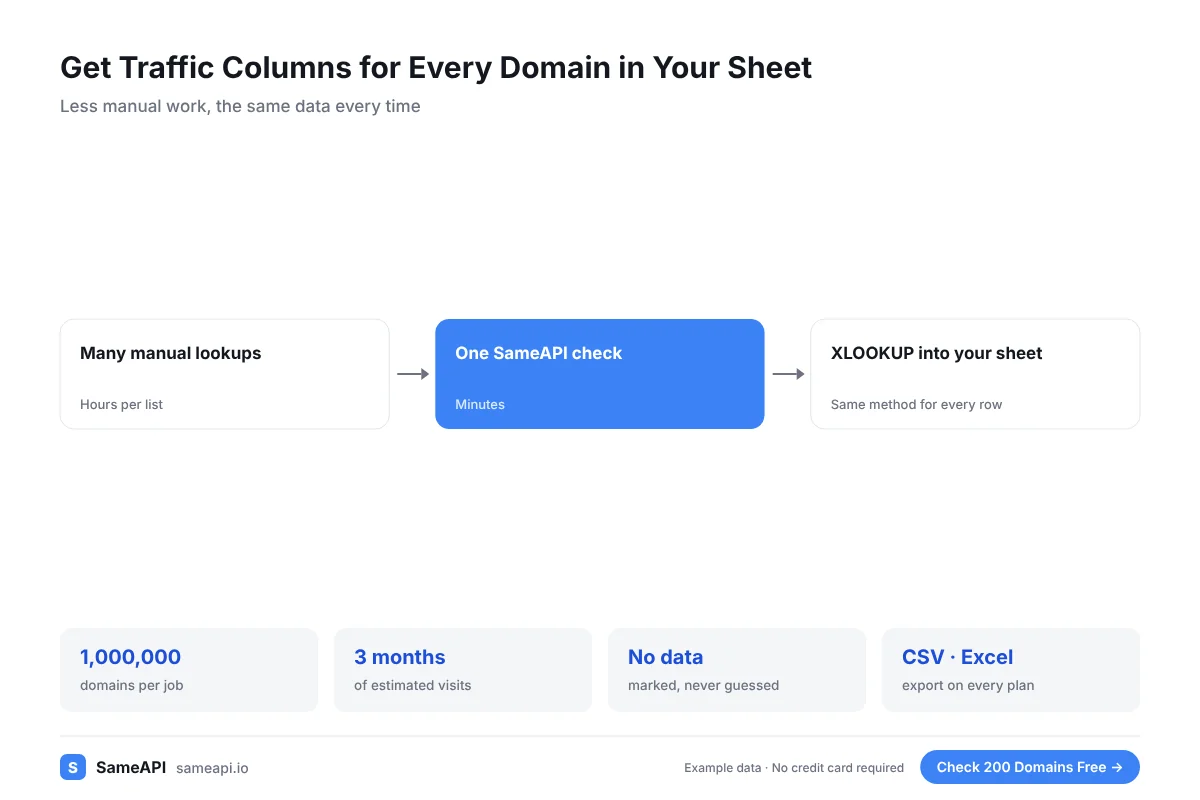
Many teams fill a traffic column by hand, one lookup per row. It takes hours and the numbers come from different tools.
One SameAPI check fills the whole column in minutes. Every row is measured the same way.
Use VLOOKUP or XLOOKUP on the domain to merge the results into your existing sheet.
Conditional formatting then highlights the sites above or below your threshold at a glance.
Keep a Monthly Tab for Each Run
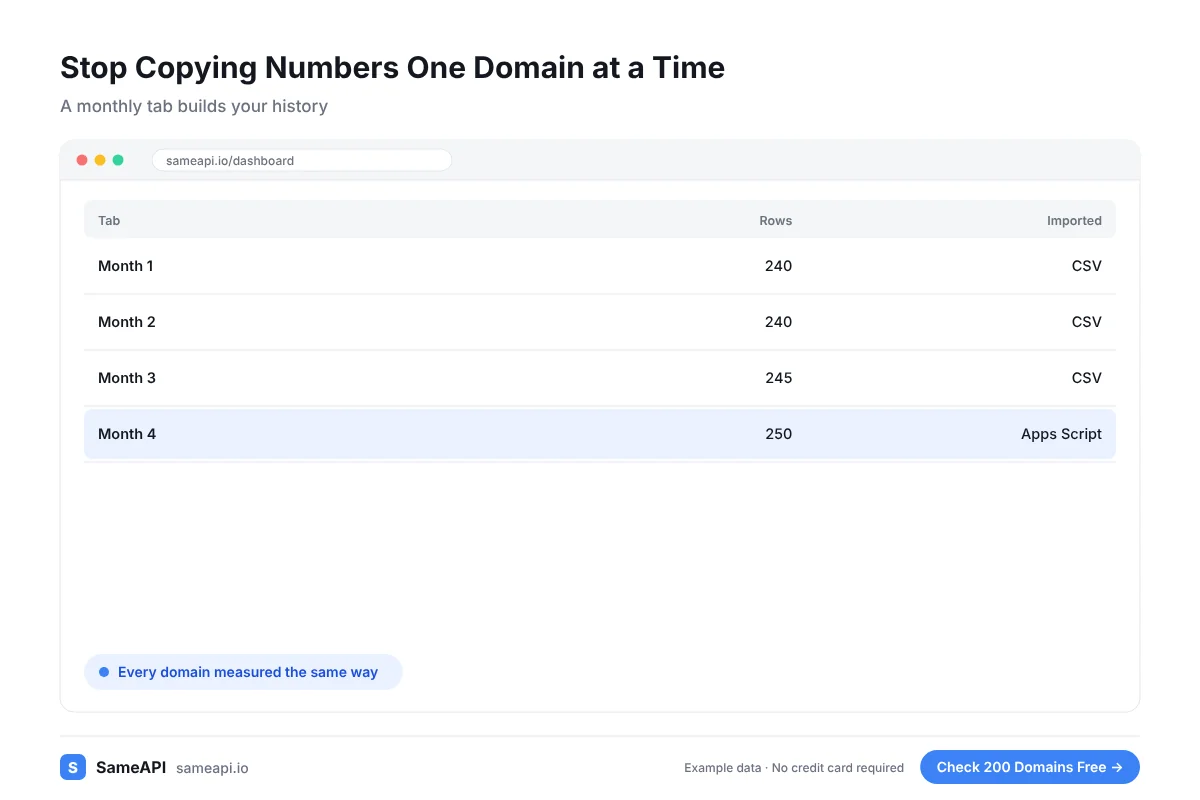
Create one tab per month and import each new export into it. Each check returns three months of data.
After a few months your sheet holds a running history for every domain. Charts across tabs show who grows and who fades.
Share the sheet with your team. Everyone works from the same numbers and the same dates.
Two Ways to Get the Data Into Sheets
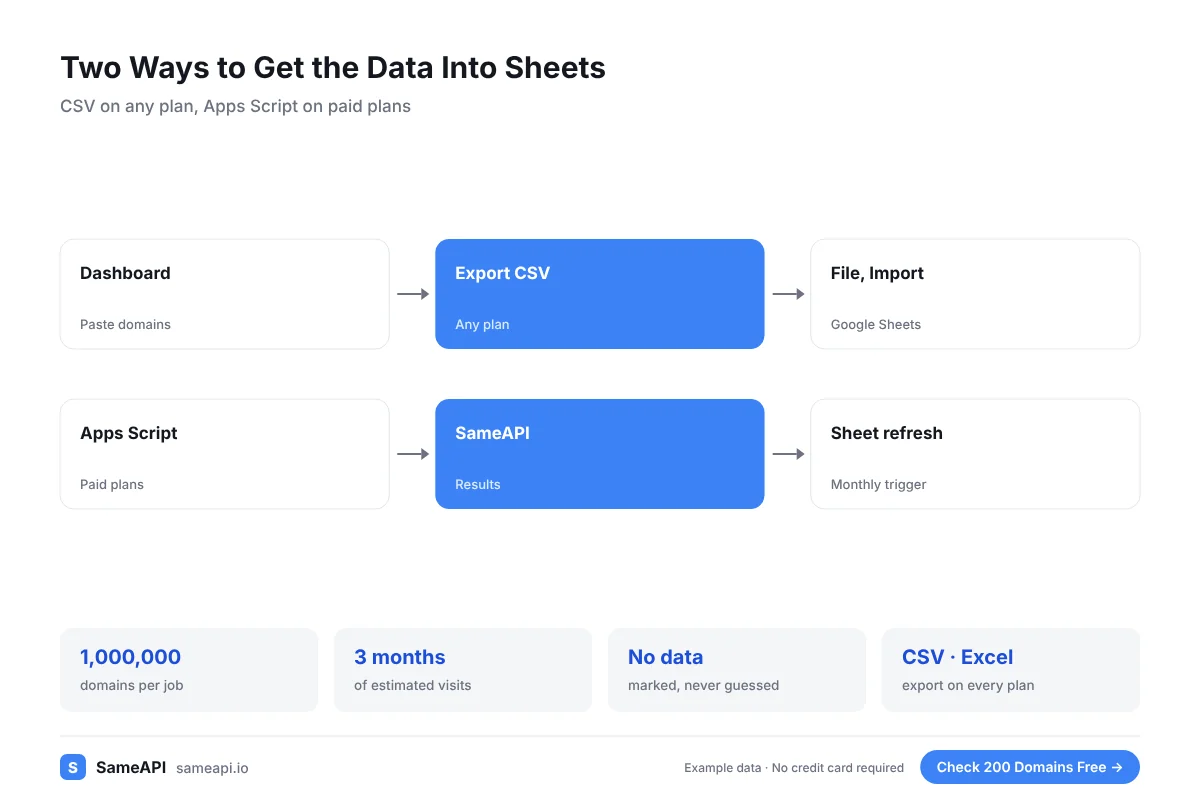
Most people use the first path. Teams that want it fully automatic use the second.
- CSV path, any plan: paste domains in the dashboard, export CSV, then File and Import in Google Sheets
- Automated path, paid plans: a short Apps Script fetches results and writes them into the sheet
- Schedule the script with a time-driven trigger for a monthly refresh
- Keep your access key in the script properties, not in a cell
The docs show the requests the script needs. Automated access starts at $20 a month.
If you have never written a script, stay with the CSV path. It covers most needs.
Built for Teams That Live in Spreadsheets
- Marketers tracking competitors in a shared sheet
- Link builders keeping inventory sheets current
- Analysts preparing data for reports
- Founders running lean research without extra tools
- Agencies sharing client reports as Google Sheets
SameAPI has no official Google Sheets add-on. The paths above use the CSV export and standard Google tools.
The free plan covers 200 domains a month. Paid plans start at $20 a month with no contract.
Fill Your Sheet With Traffic Data
Paste the domains from your sheet, export the results and import them in minutes.
No credit card required.
Last updated: